
START WITH THE BASELINE
Start with what GitHub Stars already provides

GitHub already lets you search your Stars by repository or topic name, sort and filter the Stars page, and collect starred repositories in public Lists. Its official guidance for saving repositories with Stars is the right place to learn those native controls. GitHub currently describes Lists as a public preview, so treat them as GitHub-owned, public groupings rather than your only personal organization layer.
That baseline may be enough for a small collection. Start by removing Stars you no longer want and creating a few Lists for groupings you are comfortable making public. Better Stars is optional: it runs inside the same Stars page when you need personal tags, private notes, favorites, combined filters, and a customizable working table. You can hide the manager and return to GitHub’s native list at any time.
A MAINTAINABLE MODEL
Build around retrieval, context, and upkeep
Categories are useful, but they do not answer every question. A durable system gives each repository a path back into view, preserves your reason for saving it, and creates a short routine for future cleanup.
Find it from what you remember
Use searchable metadata, focused filters, and a useful sort order instead of relying on exact names.
Record why it matters to you
Personal tags, private notes, and favorites add meaning that repository-owned metadata cannot provide.
Give the backlog a routine
Review untagged and archived items, refresh repository data, and keep the table comfortable to scan.
SIX-STEP WORKFLOW
Organize the collection without turning it into another project
Work in passes. First make repositories retrievable, then add context only where it helps, and finish by defining the small maintenance loop you will actually repeat.
Sync the library into the Stars workspace
After installation and setup, Better Stars appears inside your GitHub Stars page. The documented setup uses a GitHub Classic PAT: the repo and gist scopes are required, while notifications and read:user enable separate optional features. On the first visit, Full Sync fetches all Stars and every public repository you own. Later incremental Sync actions fetch new Stars; this is not a claim of constant background synchronization.
Make every saved repository retrievable
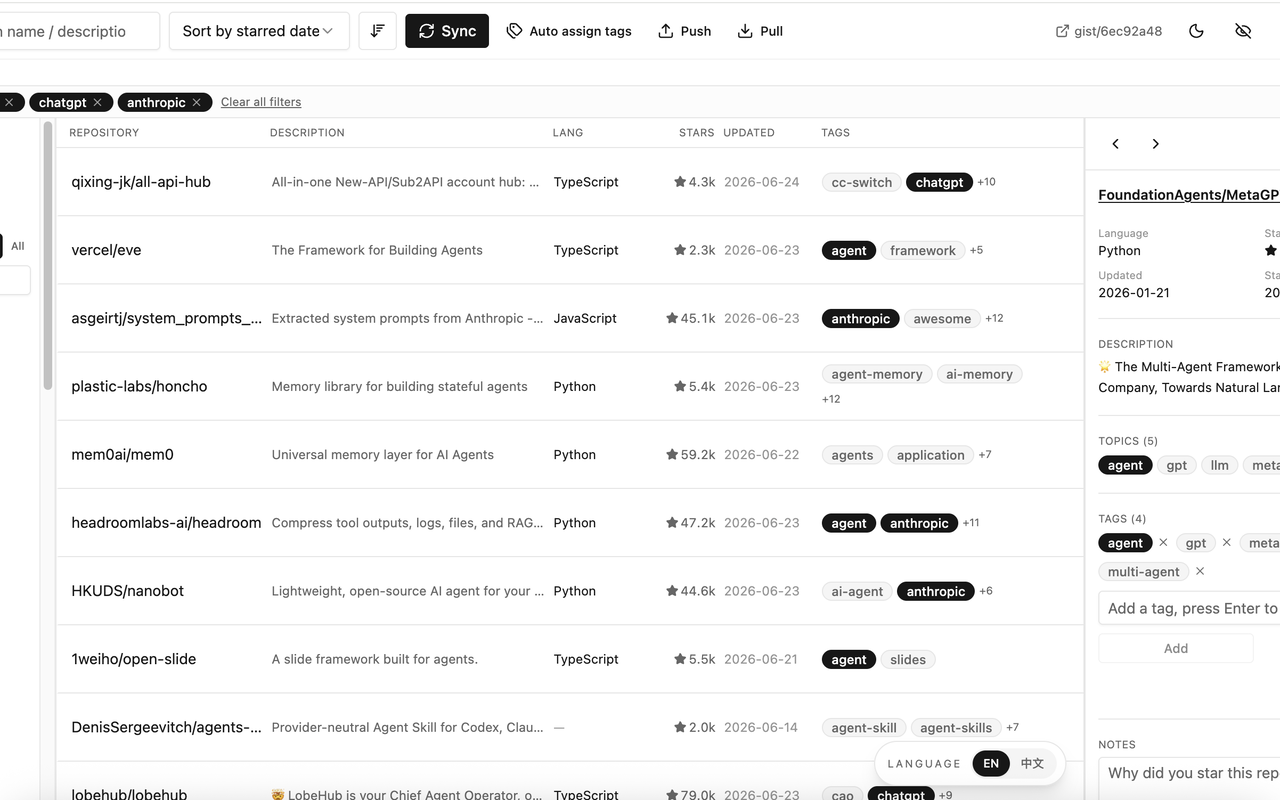
Search repository names, descriptions, GitHub topics, and private notes. Then narrow the result with language, tag, favorite, untagged, archived, or owned-repository filters. Sort the remaining rows by starred date, latest push, creation date, star count, or name. For example, a phrase from a description or note can recover a repository even when its name is gone from memory. See how to search GitHub starred repositories by description, topics, and notes without expanding ordinary workspace search into README, code, or web search.
Add the context GitHub does not know
Custom tags classify a repository for your own workflow. A private note can preserve why you saved it, and a favorite can keep a current priority in view. Better Stars can also generate local Auto Tags in bulk from GitHub topics; those tags are topic-derived, not AI-generated. Read the focused guide to build a custom tag system for GitHub Stars when you are ready to define the annotation layer.
Work through the backlog without losing your place
Use the untagged view as an inbox, the archived view for cleanup, and owned-repository, favorite, language, or tag filters for narrower passes. The virtualized list is designed to handle libraries with hundreds or thousands of rows; that describes the interface design, not a speed benchmark or fixed capacity. Finish one view at a time instead of trying to annotate every Star in one sitting.
Shape the table around the way you review repositories
In Edit custom layout mode, reorder columns by dragging their headers, resize them from their edges, and show or hide columns from the Columns menu. Owner names and owner avatars can be controlled independently. You can switch between the default and custom layouts or reset the custom layout; the chosen layout is saved in chrome.storage.local and restored on a later visit.
Keep the system current
Use incremental Sync for new Stars and Full Sync when you need all Stars plus your public owned repositories fetched again. A rescan reconciles repositories you have unstarred without deleting their existing tags or notes. Repository metadata can be rebuilt from GitHub, while your annotation layer is local unless you explicitly use Secret Gist Push or Pull.
LAYOUT IN PRACTICE
Make the review surface fit the current pass
A wider description column helps during triage; a compact set of metadata columns can make a tag or archive cleanup easier to scan. The same saved custom layout returns on your next visit, and Reset restores the default when the experiment no longer helps.
OPTIONAL ASSISTANCE
Review AI-assisted tag suggestions before applying them
The manual workflow above does not require Cubby. If you choose the optional full-library Organize workflow, Cubby freezes the current scope and analyzes bounded batches of public metadata through the AI service you configure. Analysis records progress and does not write tags.
Analyze, then Review, then Apply
When analysis finishes, Review presents the complete proposal so you can select rows. No tag changes occur during Review. Apply writes only the selected changes. This Analyze → Review → Apply sequence describes full-library Organize, not every ordinary Cubby conversation or bounded tag action.
DATA BOUNDARIES
Where your Stars organization data lives
“Local-first” describes the core storage boundary, not an offline-only product and not a locally running AI model. GitHub synchronization, Secret Gist actions you start, and Cubby requests you make produce the corresponding network traffic.
- Core library
- Star metadata and annotations are stored in the browser, using IndexedDB and chrome.storage.local as documented. GitHub synchronization talks directly to GitHub.
- Personal annotations
- Tags, notes, favorites, and tag metadata stay in IndexedDB by default. Optional Push or Pull carries only that annotation layer through a Secret Gist in your GitHub account.
- Outside the Gist
- Watch, Following, For You, Cubby conversations, and Organize records do not enter the annotation Gist. Repository metadata is rebuilt from GitHub rather than treated as part of that Gist layer.
- Optional connections
- Cubby sends requested work directly to the AI service you configure. The project states that it operates no application backend, GitHub proxy, AI proxy, analytics SDK, ad network, or tracking service.
FAQ
Frequently asked questions
Does Better Stars replace GitHub’s Stars page?
No. It runs inside the Stars page as an organization layer. Hide the manager whenever you want to use GitHub’s native Stars list.
Should I use GitHub Lists or custom tags?
Use GitHub Lists for native public groupings. Use Better Stars tags for a personal classification layer that works with notes, favorites, and the workspace filters. Either can be useful on its own.
What happens to tags and notes if I unstar a repository?
A rescan reconciles unstarred repositories without deleting their existing tags or notes, so that context is retained rather than discarded during the rescan.
Can AI reorganize my library without review?
Full-library Cubby Organize analyzes first and does not write tags during Analyze or Review. It applies only the rows you select after you choose Apply.
Can I sync tags and notes between browsers?
Better Stars provides optional Secret Gist Push and Pull for the annotation layer: tags, notes, favorites, and tag metadata. It is not a generic backup or a sync of every product record.